Alert Triage
Triage is the loop you run when the queue fills up: find what matters, acknowledge what you're taking, snooze or close the noise, and escalate what you can't handle. Everything here works identically in the admin console and the mobile app.
- Alerts flowing in — at minimum the test alert from Getting started.
- Signed in to the admin console, and/or the mobile app configured per Mobile setup.
-
Cut the list down to what matters
The Alerts page opens on everything. Use the status chips to show only Open — that's your work queue. Acknowledged is work in progress, Closed is history. The search box does full-text filtering across alert messages, sources, and tags, so
paymentsorP1narrows instantly.TipDuring an incident, filter to Open and sort by severity: work P1s first, batch the rest. A queue you can't see the top of is a queue you'll lose alerts in.
-
Act on many alerts at once
Tick the checkbox on any row and the bulk action bar appears at the top of the list. Select as many alerts as you need — every action in the bar applies to all of them.
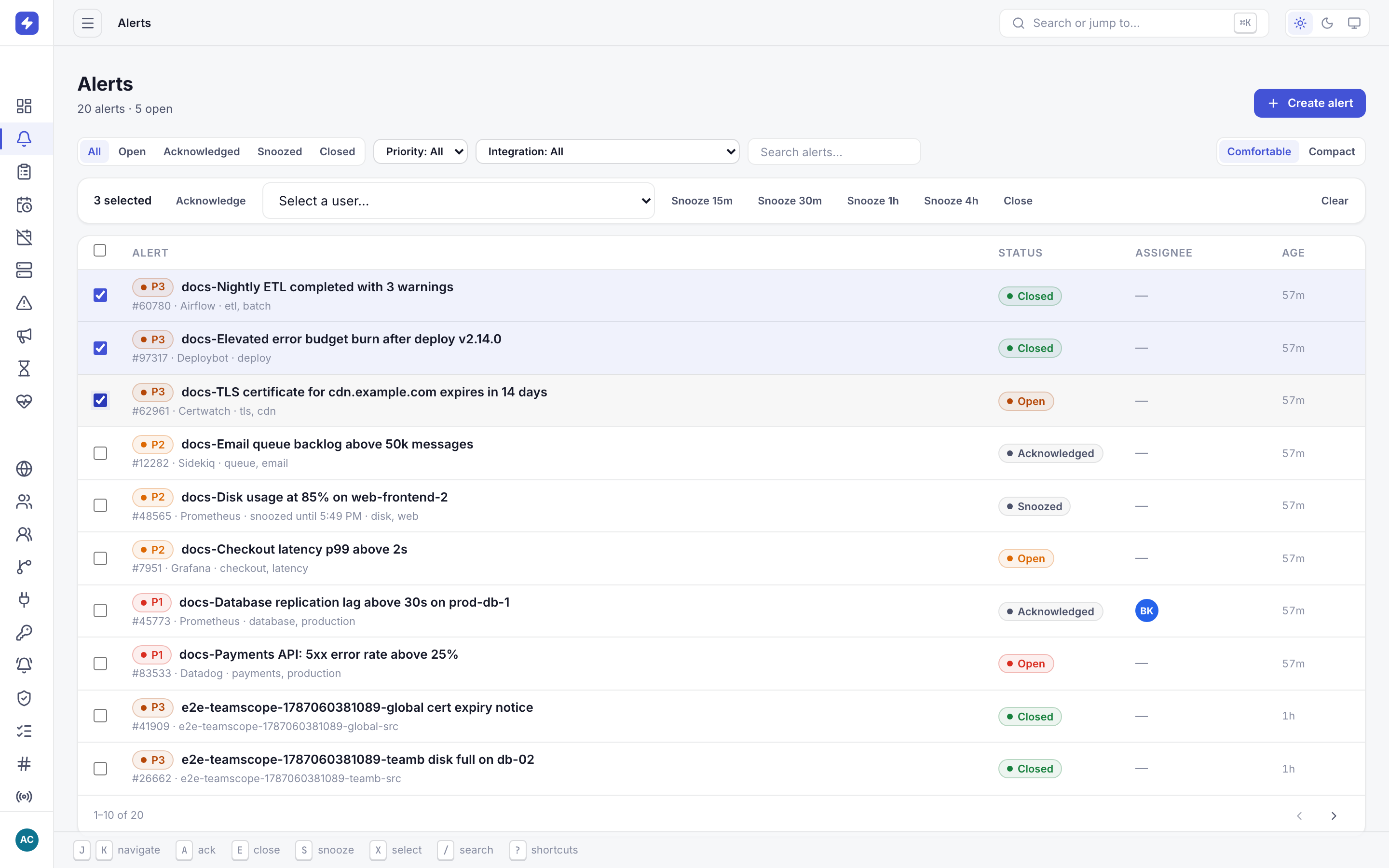
Selecting alerts with the row checkboxes reveals the bulk action bar: acknowledge, close, snooze presets, and assign-to-user. The bar offers four actions: acknowledge, close, snooze (presets from 15 minutes to 4 hours), and assign to a user. Bulk ack is the standard "I've seen the flood, I'm on it" move; bulk close is for clearing noise after the root cause is fixed.
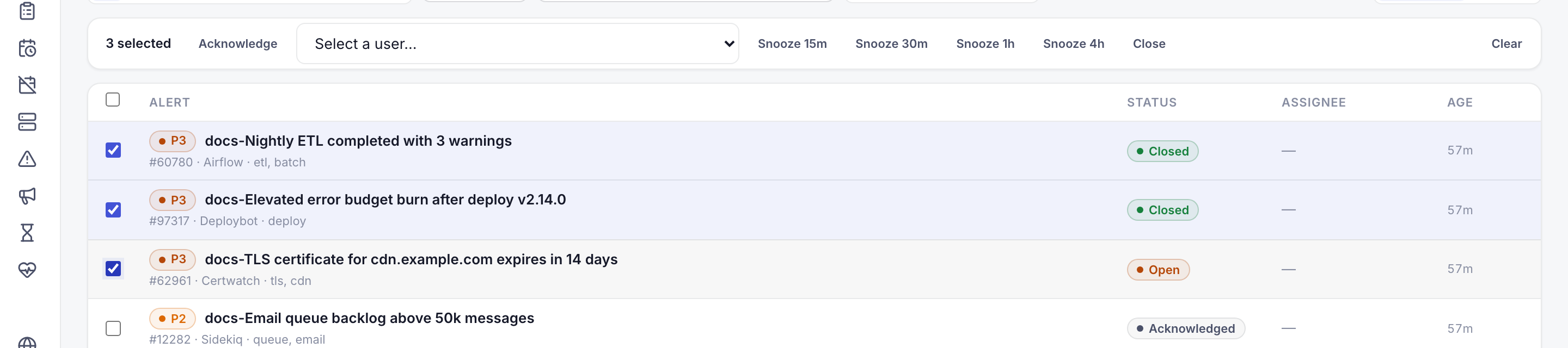
The bulk action bar close-up: snooze presets (15m to 4h) and the assign picker apply to every selected alert at once. -
Work a single alert through its lifecycle
Click any alert to open its detail page. This is where real triage happens: severity banner, full description, metadata, the action bar, and the activity timeline that records everything anyone does to the alert.
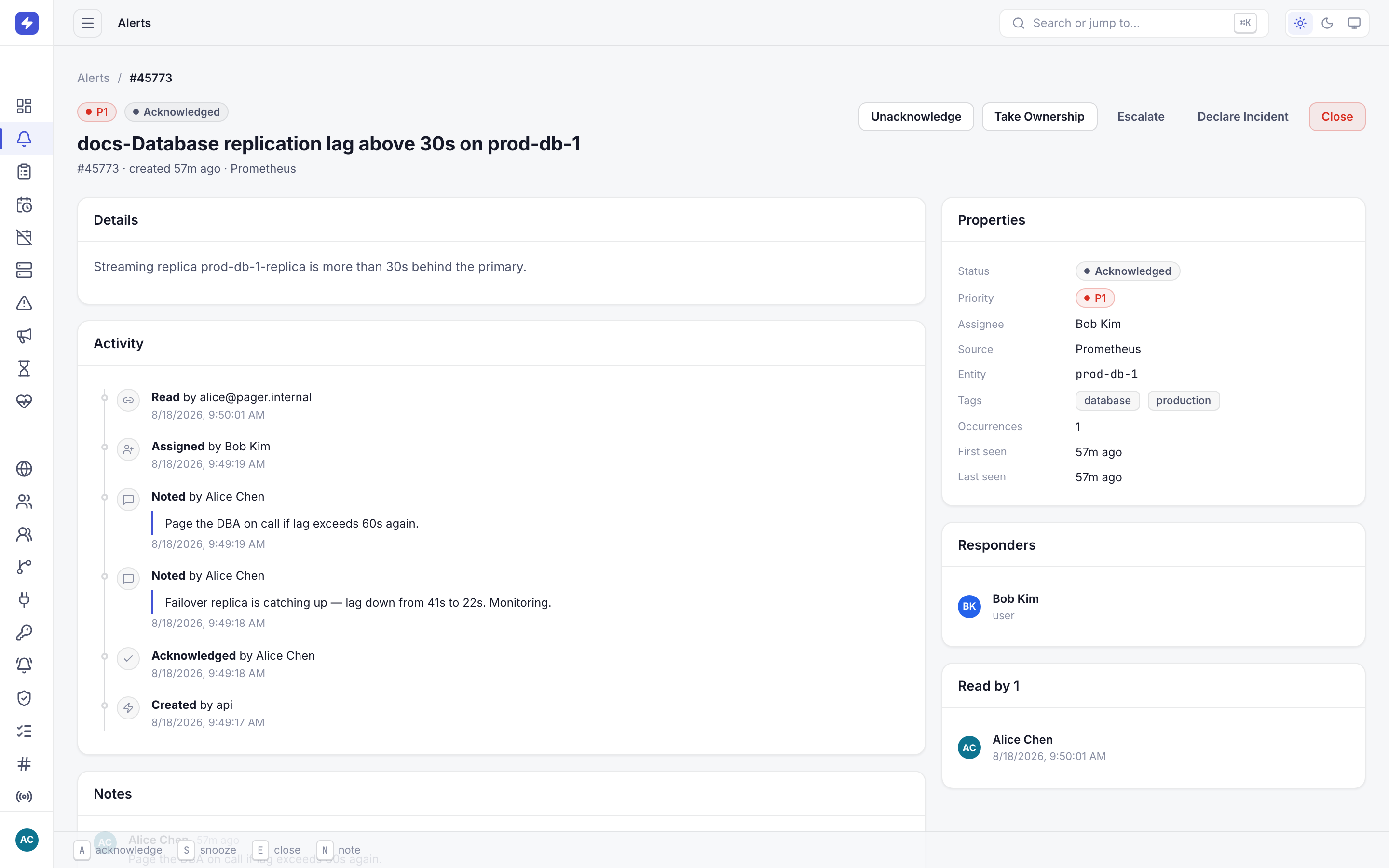
Alert detail for a P1 alert: severity banner, description, metadata, and the activity timeline with operator notes. The action bar offers acknowledge, snooze, take ownership, escalate, declare incident, and close. The lifecycle, in the order you'll usually run it:
- Acknowledge — stops escalation and tells the team someone owns it. Ack is a statement, not a fix.
- Note — add context for the next person: what you checked, what you suspect, links to dashboards. Notes land in the timeline.
- Assign — hand the alert to a specific user when it's theirs to fix. They get notified.
- Snooze — silence a known-benign alert for a preset window (15m, 30m, 1h, 4h). It reopens automatically when the window ends. Snooze is offered on open alerts; once an alert is acknowledged, the action bar shows Unacknowledge in its place.
- Close — resolved or not actionable. Closed alerts stay searchable in the list.
WarningSnooze is not close. A snoozed alert comes back — if you snooze a real problem four times in a row, you've lost two hours. Snooze noise; work or escalate everything else.
-
Escalate when it's over your head
The Escalate action on the detail page pushes the alert to the next level of its escalation policy immediately — you don't wait for the timeout. Use it when you've confirmed the problem is real and not yours. Declare incident, next to it, promotes the alert into a tracked incident with responders and a status timeline (covered in Incidents & services).
NoteEscalation targets come from the alert's escalation policy. If no policy is attached, manual escalation has nowhere to go — set policies up in Schedules & escalations.
-
Triage from your phone
The mobile app mirrors the same lifecycle. The Alerts tab has the same filter pills and alert cards; swipe a card for the quick actions you'll use most. Tap through to the detail for the full timeline and the floating action bar: acknowledge, snooze, note, assign, escalate, close.
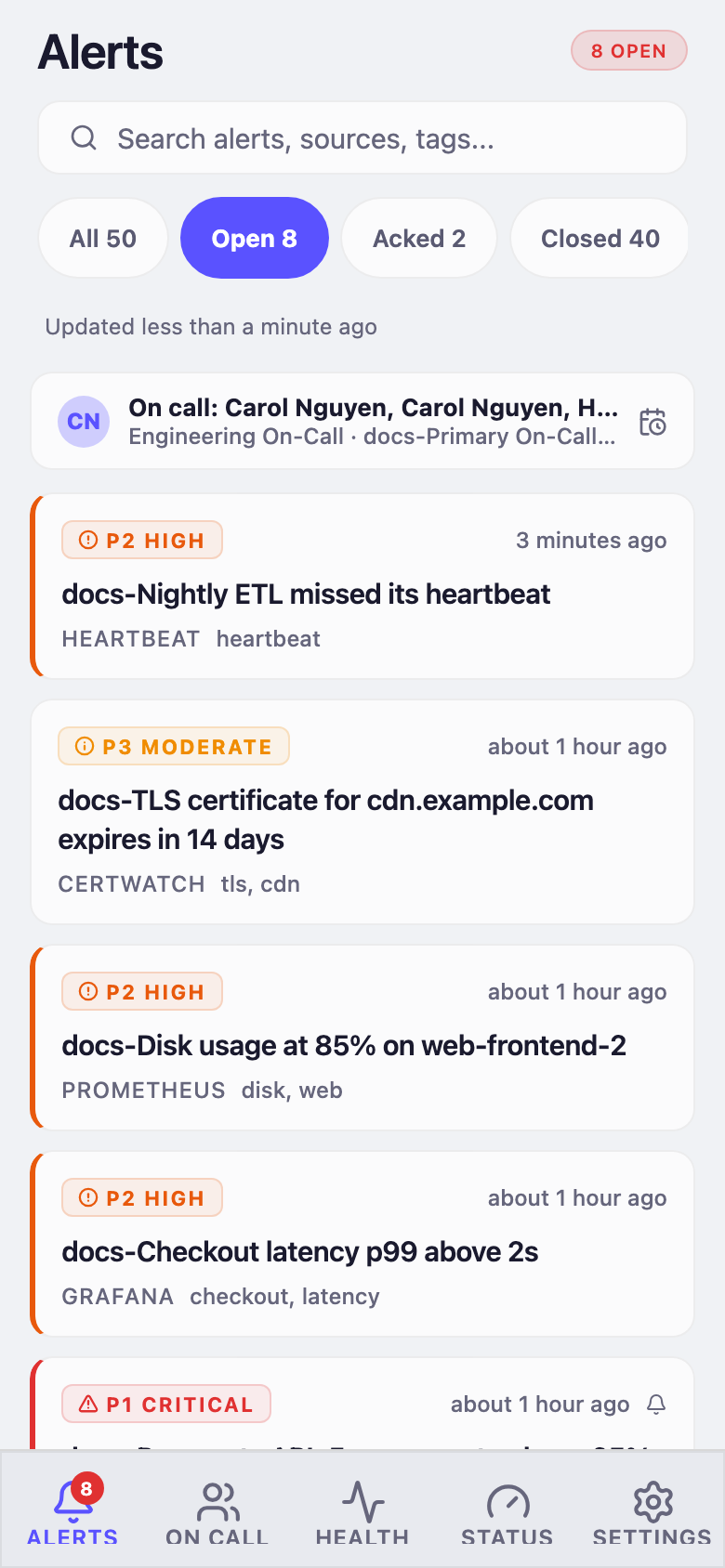
The mobile alerts tab: filter pills, the on-call banner, and alert cards with severity, source, and relative time. 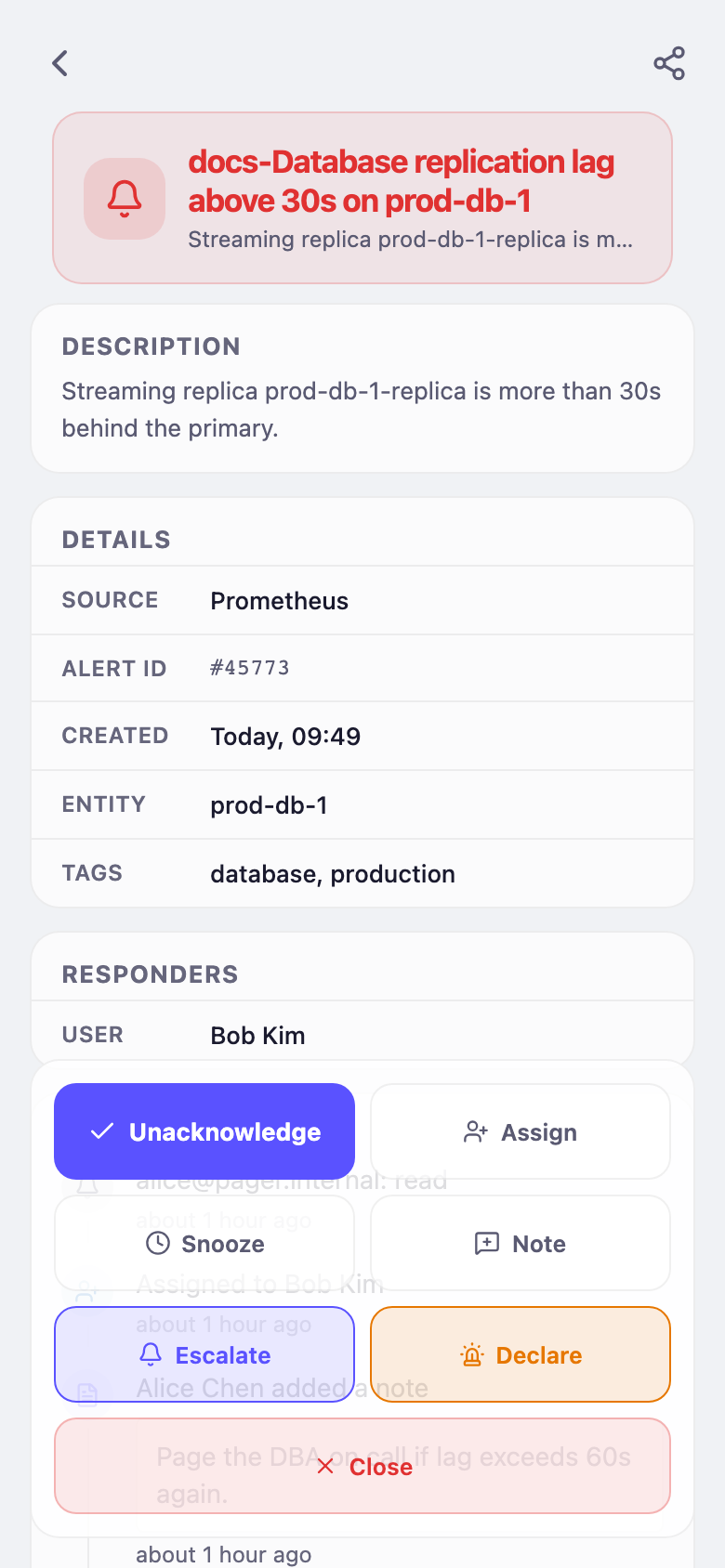
Mobile alert detail with the full activity timeline and a floating action bar for every lifecycle action. Acking from mobile is the most important action in the product: it's what stops the escalation chain at 3 a.m. Everything else can wait for a keyboard.
-
Read the timeline — it's your receipt
Every action on an alert — created, acknowledged, snoozed, noted, assigned, escalated, closed — lands in the activity timeline with the actor and a timestamp. That timeline is your audit trail and your read receipt in one: when you ack an alert, everyone else can see you did, and when someone else acks, you can stop worrying about it.
TipBefore you close an alert someone else acknowledged, read their notes in the timeline first. If they wrote "deploying fix," closing it under them loses the record that the fix worked.