Notifications & Channels
Delivery is the product. This guide covers how pages reach people: push-first delivery, the per-user rules that decide what reaches which channel, channel verification, what SMS and voice cost, and exactly how quiet hours and mute behave.
- The mobile app installed and configured, per Mobile setup — that's your push channel.
- Schedules and escalation policies in place, per Schedules & escalations.
-
Understand how delivery works
OpsPing is push-first. When an alert fires, the escalation policy decides who to notify, and each person's notification rules decide where the page goes. Push notifications are free and unlimited on every plan — no per-alert charges, no monthly ceiling.
Push is built to wake you up:
- Per-severity sounds — P1 sounds different from P3, so you know whether to reach for the phone before you look at it.
- iOS critical alerts — P1 push breaks through silent mode and Focus, with Apple's critical-alert entitlement. Wearing an Apple Watch? See why pages may ping your watch instead of ringing your phone.
- Android DND bypass — high-priority alarms ring through Do Not Disturb.
SMS and voice calls are the optional fallback layer for when push might not be enough — and email is for the things that can wait, like digests and assignment notices. SMS/voice delivery (via Twilio) is rolling out during the pilot, so it may not be enabled on your tenant yet.
-
Write notification rules
Notification rules are per-user: each person decides which alerts reach which of their channels. On the admin page, select a user to view and edit their rules. Each rule has three parts:
- Criteria — what the rule matches: priority (e.g. P1 only), a source, or an on-call gate (only when this user is on call for a given schedule). Team and time-window restrictions can narrow it further.
- Channels & delay — where to send, and after how many minutes. A delay of 0 pages immediately; a delay lets a quick ack on push cancel the SMS that would have followed.
- Repeat — optionally re-fire the rule until the alert is acknowledged, so a page that got slept through doesn't stay slept through.
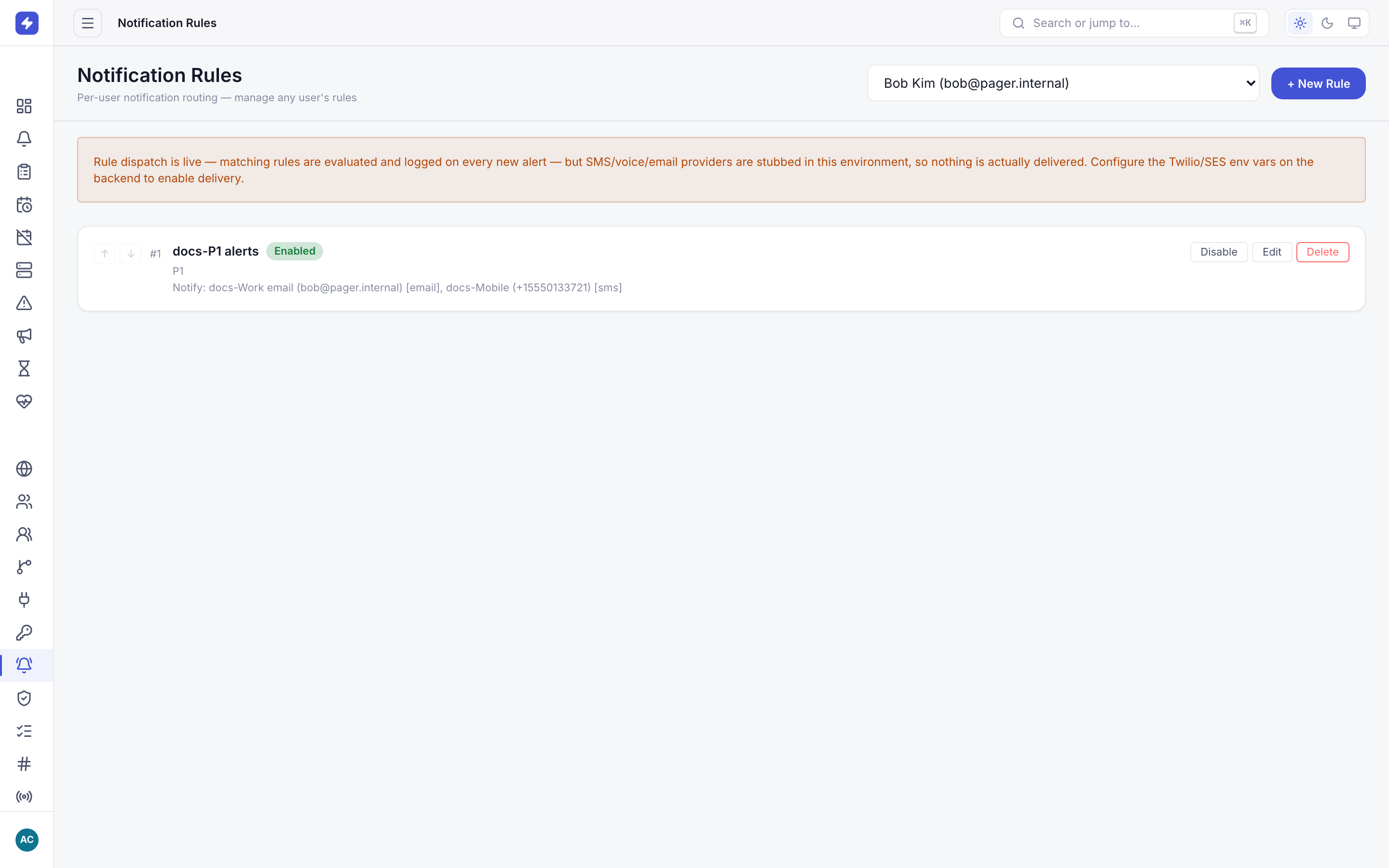
Per-user notification rules decide which alerts reach which channels. Select a user to view and edit their rules. TipThe classic ladder: push at 0 minutes, SMS at 5, voice call at 10 — for P1s only. Lower priorities get push and email. You get woken for what matters, and the phone stays quiet for what doesn't.
-
Add and verify channels
Channels are delivery targets attached to a user: email addresses, SMS numbers, voice numbers. Every channel must be verified before OpsPing sends anything to it — adding a channel sends a verification code to that address or number, and the channel goes live only after the code is confirmed. Rules that target an unverified channel are skipped, so a typo'd phone number fails safe instead of paging a stranger.
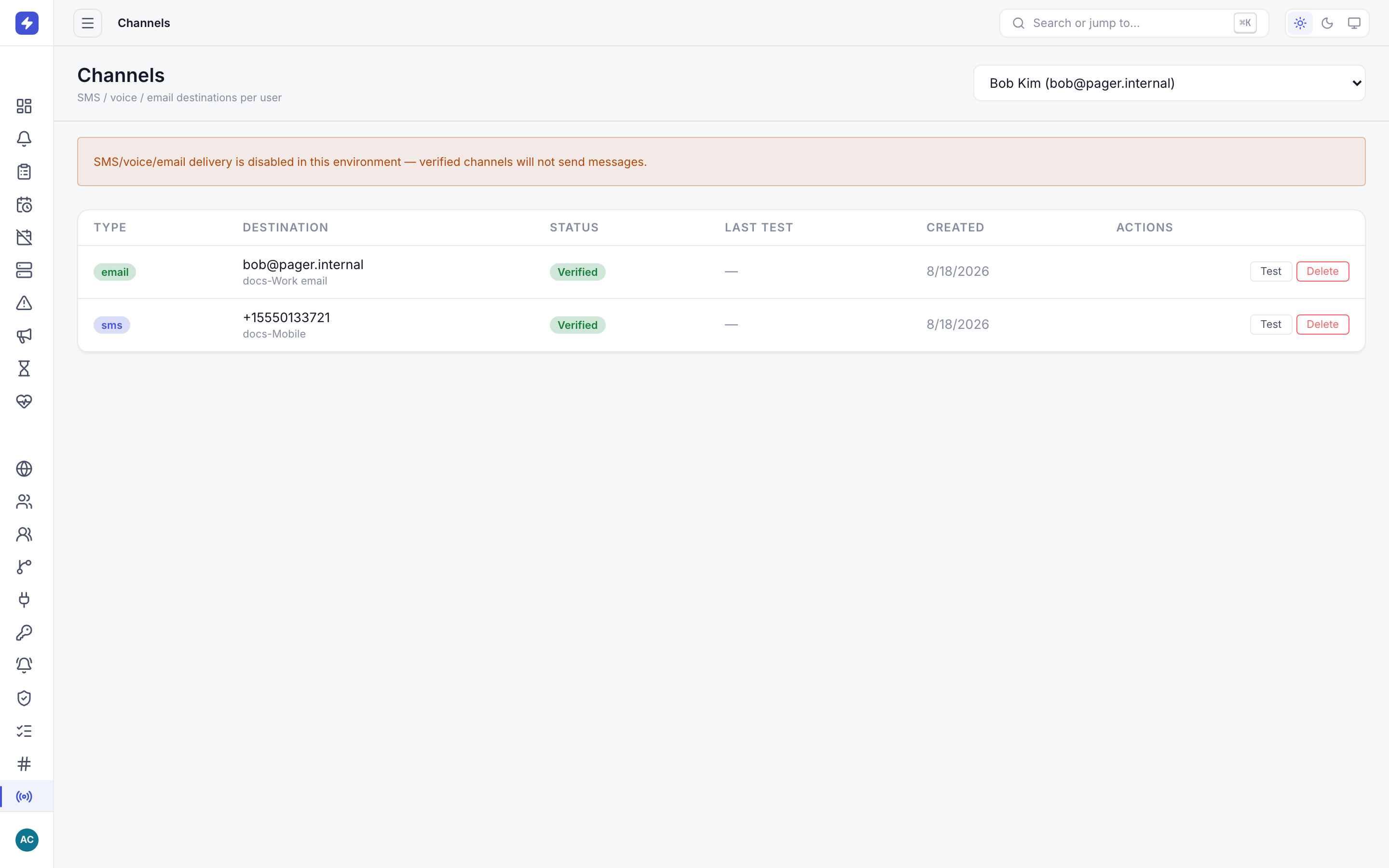
Channels are delivery targets (email, SMS, voice) per user. Channels must be verified before notifications are sent to them. -
Know what SMS and voice cost
Push is free, always. SMS and voice draw on your organization's flex spend: usage is billed at provider cost with no markup, against a monthly credit included with your plan — and capped by a hard monthly ceiling you set. When the credit is spent, SMS and voice stop and push keeps going. A bill can never surprise you.
NoteFull plan details and the flex-spend breakdown are on the Pricing page. The short version: even at $0 of flex credit remaining, paging never stops — that's the point of push-first.
-
Set quiet hours and know what mute really does
Two personal controls shape delivery, and they behave differently:
- Quiet hours suppress non-P1 notifications during a window you choose. P1 breaks quiet hours — that's the whole point. A P3 at 3 a.m. waits; a P1 at 3 a.m. rings.
- Mute suppresses everything, P1 included, until the mute expires. It exists for genuine "I am unreachable" moments — on a plane, in surgery — not for a normal night's sleep. If you want sleep with a safety net, use quiet hours, not mute.
WarningMuting yourself does not re-route the page. If you're muted and on call, the alert escalates only after the policy's delays elapse. Going dark for more than an hour? Request an override or out-of-office coverage instead — see Schedules & escalations.
-
Route alerts into Slack
Slack is where your team already argues about the outage, so OpsPing delivers there too. Install the Slack app (OAuth or paste-in install), then write delivery rules that route matching alerts to a channel. Each alert lands as a Block Kit card with Ack, Snooze, and Resolve buttons — no context switch to the console for the routine moves.
Buttons act as a linked user, not an anonymous bot. Each person runs
/opsping linkonce to tie their Slack account to their OpsPing account, after which an ack from Slack is their ack — same audit trail, same escalation ladder.The slash commands cover the rest:
/opsping status,/opsping oncall, and/opsping ackwork in any channel. Incidents also get their own Slack channel — responder invites, resolve summaries, and archive policies included. Full setup and options are in the Slack guide; the marketing-level pitch is on the Slack ChatOps page.