Mobile Setup
The mobile app is where alerts actually reach you. This guide covers install, connecting to your backend, and the notification permissions that decide whether a P1 wakes you up at 3 a.m. or waits silently until morning.
- An OpsPing user account (any role) — created for you by an admin, or via invite.
- Your backend URL —
https://api.ops-ping.comfor cloud, or your team's private deployment address. - An iOS or Android device. Push notifications require a physical device; simulators won't receive them.
-
Install the app
Install OpsPing on your phone from the store listing for your platform.
Note — store availabilityPublic App Store and Google Play listings are not live yet. Until they are, your admin distributes builds through TestFlight (iOS) or an internal track / direct build (Android). Ask your admin for the invite link — and don't sideload builds from anywhere else.
-
Configure the backend — scan the QR code
The easiest path is the QR code in your welcome email: in the app, go to Settings → Scan QR and scan it. The payload (
opsping://configure?url=…) sets the backend URL for you. Then sign in with the same email and password you use for the admin console, or paste an API key if your team authenticates that way.No QR code handy? Enter the backend URL manually, exactly as your admin gave it to you — including the scheme (
https://) and with no trailing path — then sign in the same way.After saving, tap Test. You want to see Connected before doing anything else — every other screen reads from this connection.
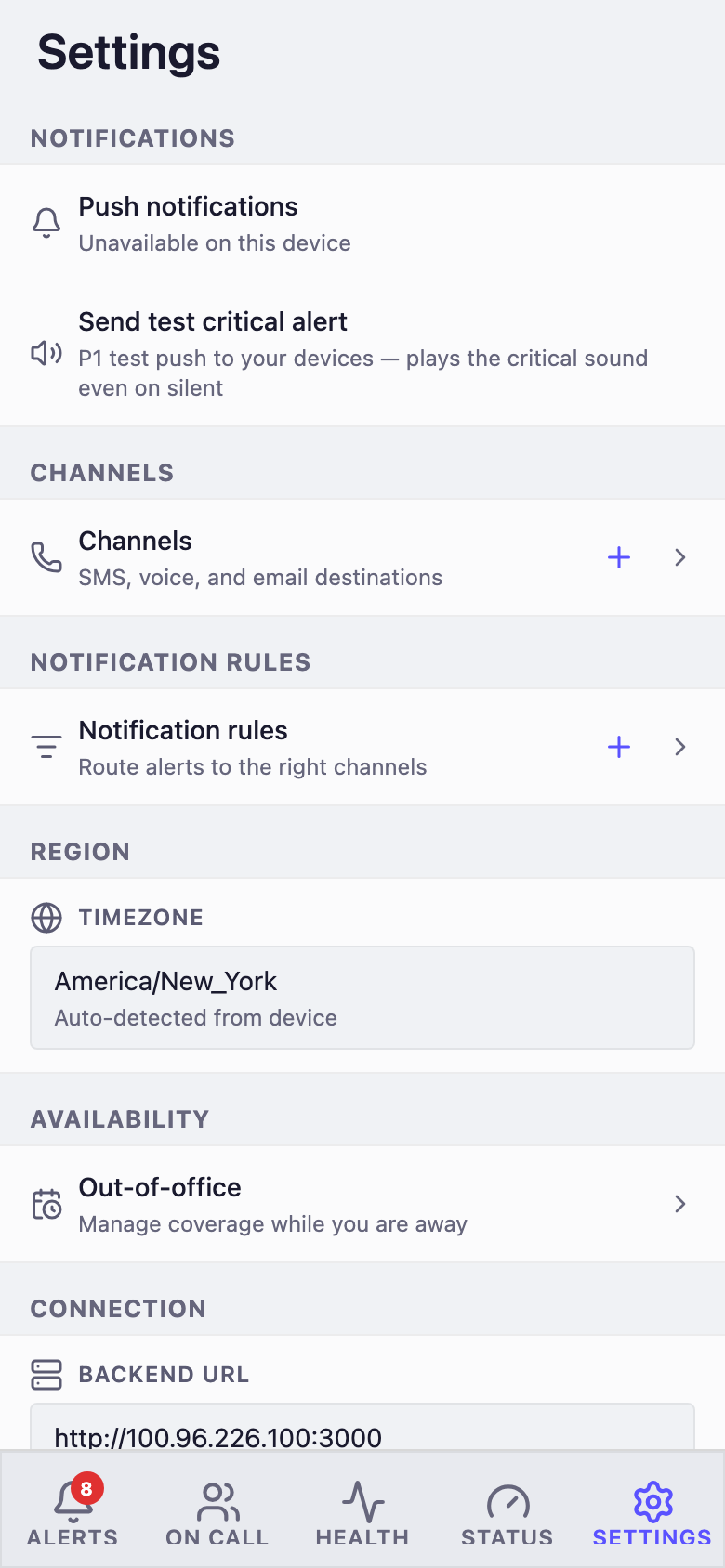
Mobile settings: backend URL and API key with a connection test, appearance, and profile. Use Test to verify connectivity after changing the URL. WarningA connection failure here is almost always one of three things: a typo in the URL, a device on a network that can't reach the backend (VPN, captive portal), or an expired/revoked API key. Fix it in Settings before assuming the app is broken.
-
Grant notification permission
The app prompts for push notification permission on first run. Accept it — declining means no pages, which defeats the purpose.
What the prompts meaniOS: the system dialog "OpsPing would like to send you notifications" gates all push. If you tapped Don't Allow, re-enable it in iOS Settings → Notifications → OpsPing.
Android 13+: the runtime notification permission works the same way. On some Android skins also check battery optimization — aggressive savers can delay or kill push delivery.
-
Understand critical alerts
OpsPing marks P1 notifications as critical. On iOS, critical alerts play sound and vibrate even when the phone is muted or in Do Not Disturb — that is the behavior you want for a page. On Android, P1s post to a high-importance channel that overrides DND if you've allowed it.
TipCritical delivery only applies to P1. If you want fewer overnight interruptions without missing real pages, keep critical alerts on and use quiet hours or P1-only mode (Settings → Notifications) to suppress P2–P5. Muting notifications in the app suppresses everything, P1 included — don't mute before going on call.
-
Check the notification health card
Settings shows a notification health card that summarizes your delivery state: whether push permission is granted, whether your device token is registered with the backend, and when the last push was delivered. If anything is off — permission revoked, token stale — the card tells you which piece to fix instead of leaving you to guess why pages stopped arriving.
NotePush is one of four delivery channels. SMS, voice, and email are configured per user in the admin console and require provider credentials on the backend — see Notifications & channels. Those are a fallback for when push can't reach you, not a replacement for it.
-
Verify you can see alerts
Open the Alerts tab. You should see the same alerts as the admin console — including the test alert from Getting started if it's still open. The on-call banner at the top tells you whether you're currently on call for any schedule.
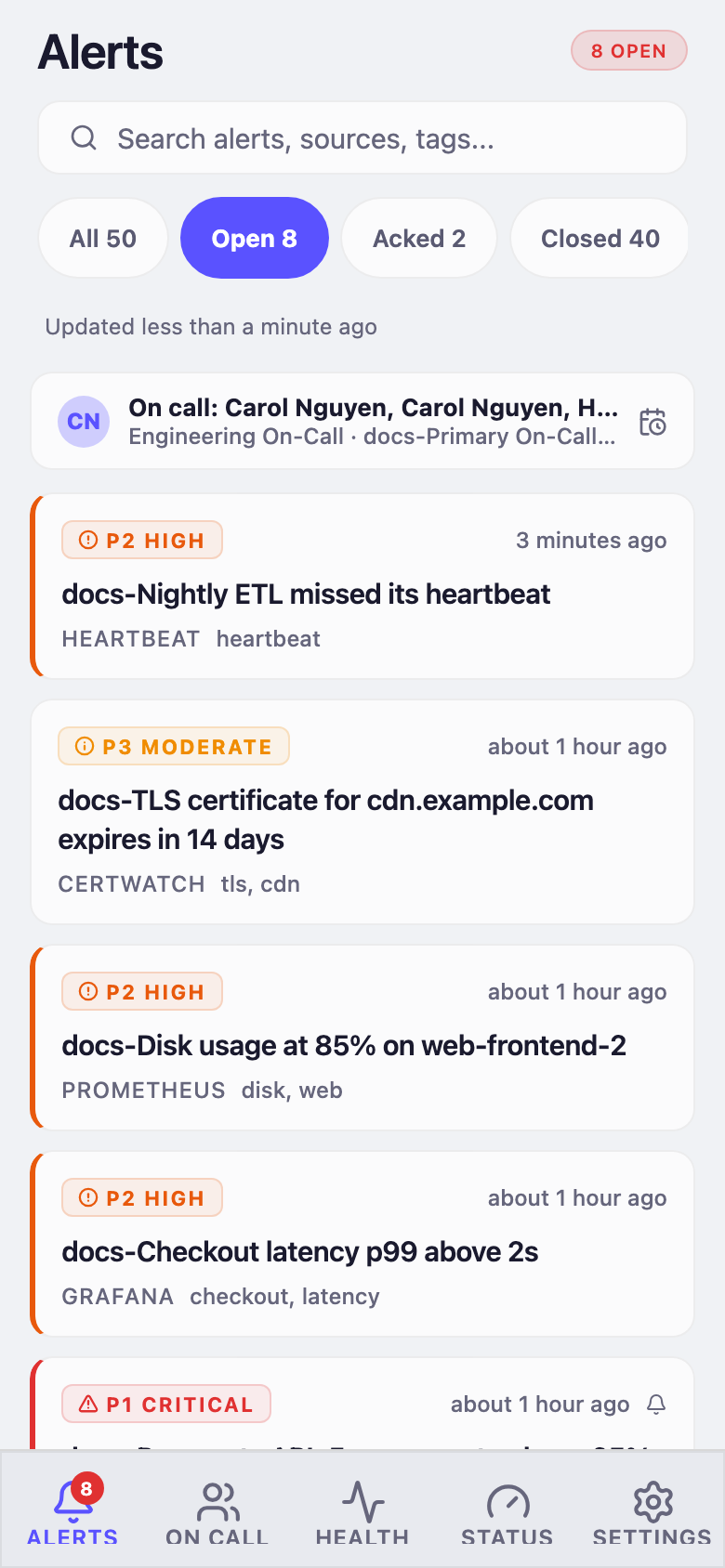
The mobile alerts tab: filter pills, the on-call banner, and alert cards with severity, source, and relative time. Swipe a card for quick actions. If the list loads and pulls to refresh without errors, setup is done. Have a teammate trigger a P1 test alert while your phone is locked and muted — that's the only test that really matters.