Saved searches
If you run the same alert query every morning — your team's open P1s, a flaky integration, everything snoozed overnight — save it once and reopen it in a click. Saved searches are personal: each user keeps their own list.
- An OpsPing account (any role). Saved searches are per-user, so you only ever see your own.
- Familiarity with the alerts list filters — see Alert triage. A saved search is just a query string you've already found useful.
-
Open the Saved Searches page
In the sidebar, under Audit, click Saved Searches. On a fresh account the list is empty.
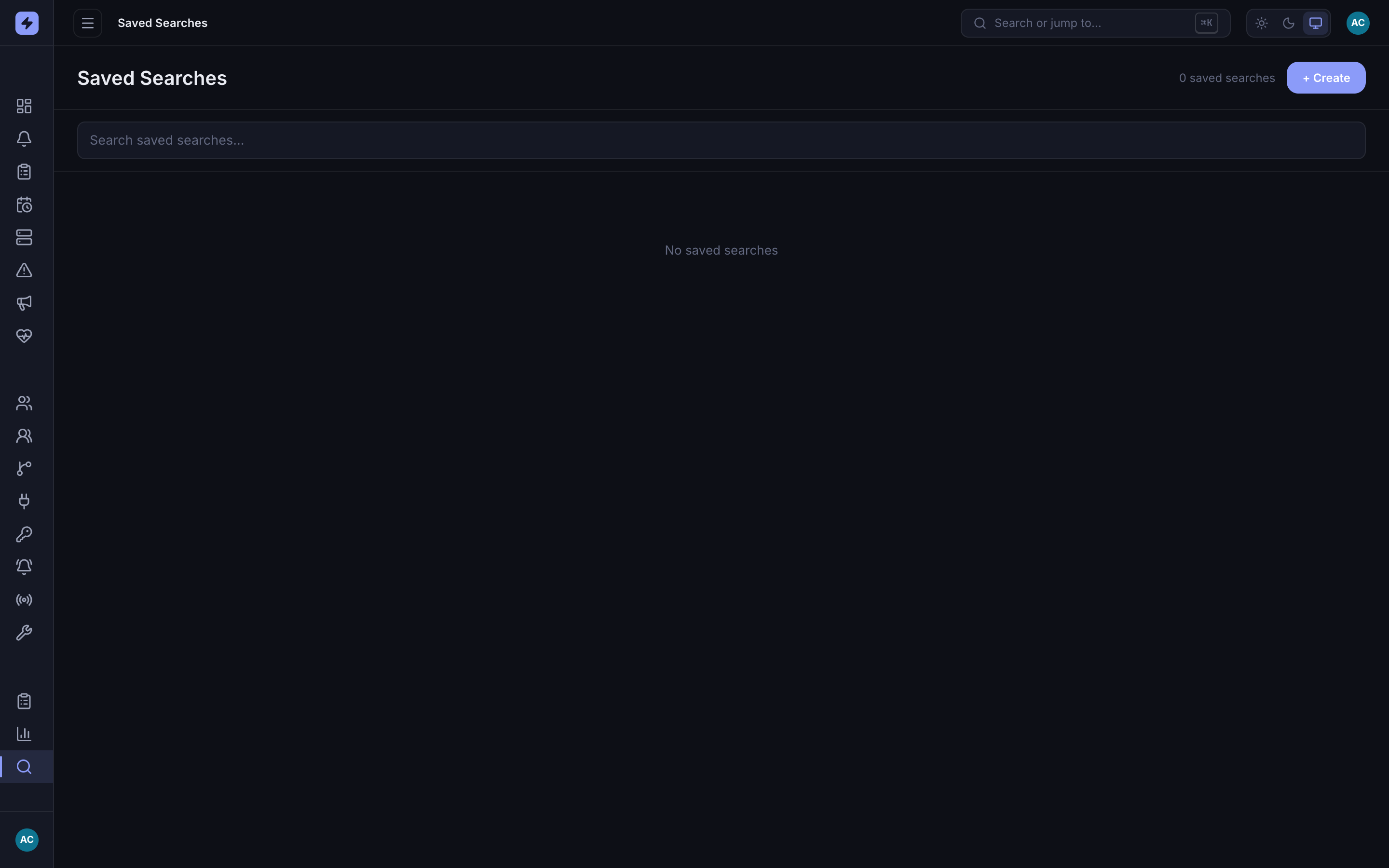
The Saved Searches page. Each user has their own list; click Create to save your first query. -
Name the search and paste your query
Click Create. Give the search a name you'll recognize later, and paste the query it should run. The query uses the same filter syntax as the alerts list — for example
priority:P1 status:openfor open P1 alerts.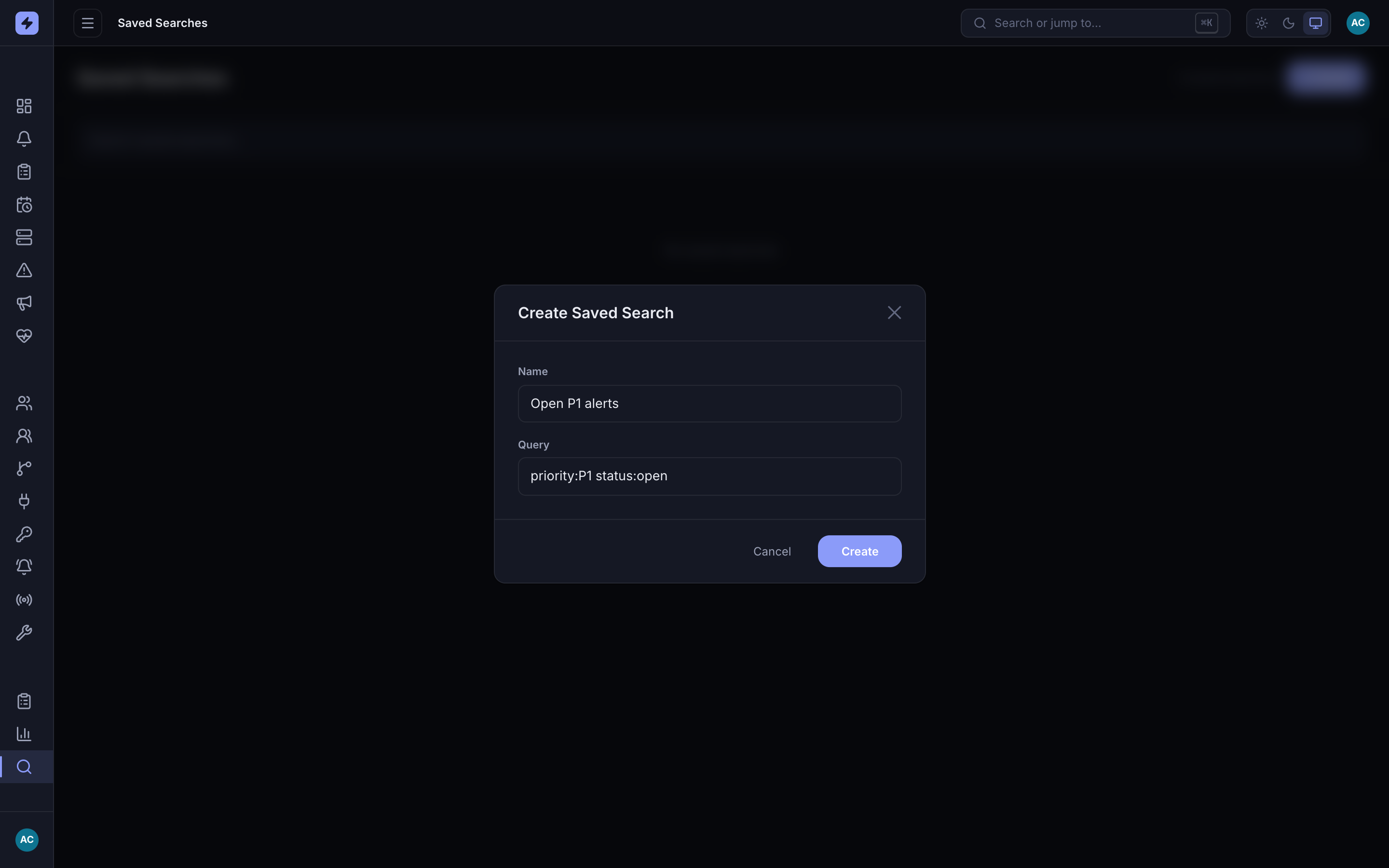
Name it something memorable and paste the query. priority:P1 status:openre-runs the exact same filter as the alerts list. -
Run, edit, or delete a saved search
Saved searches appear as a list. Each row shows the name, the underlying query, and Edit / Delete actions. The name links to the alerts list with that query applied — your filtered view, instantly.
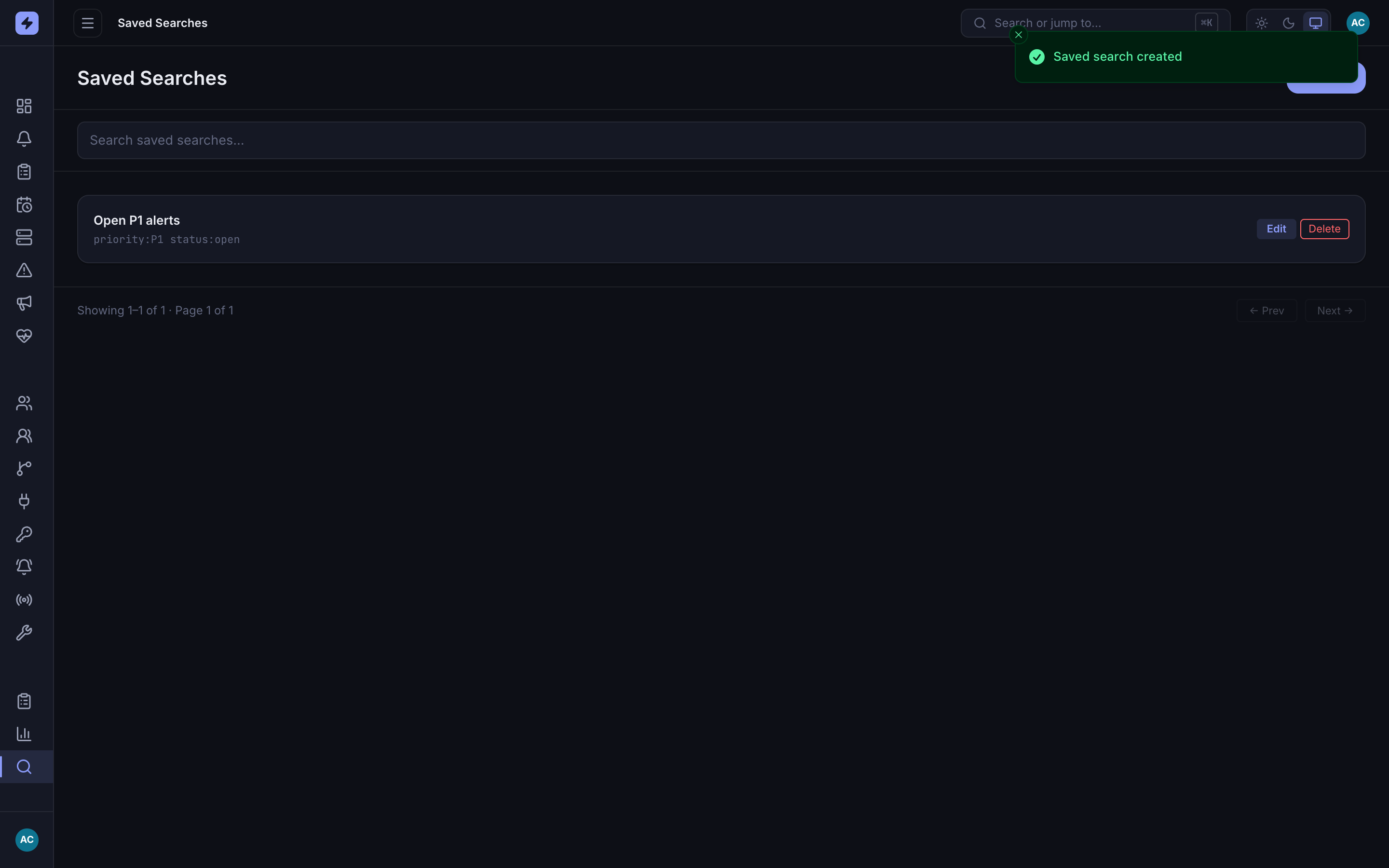
One saved search in the list. Click its name to jump to the alerts list with the query applied; use Edit to tweak it or Delete to remove it. TipBuild the query in the alerts list first — set the priority, status, and source filters until you see what you want — then copy that query into a saved search. That way you know it returns the right things before you save it.