Announcements
Broadcast a status update to the people who need it. An announcement pushes a notification to your stakeholders and lands at the top of the mobile Status tab — the right tool for planned maintenance, a major incident in progress, or anything you want people to see without paging the on-call responder.
- An OpsPing account with the admin role — creating announcements is an admin action.
- Signed in to the admin console. If you're not there yet, follow Getting started first.
- For recipients to actually receive a push, they need to be stakeholders with the mobile app installed and notifications enabled (see Mobile setup). On a workspace with no stakeholder users, the announcement is still created and listed — it just reaches zero recipients.
-
Open the Announcements page
In the sidebar, under Operations, click Announcements. On a fresh workspace the list is empty — that's expected.
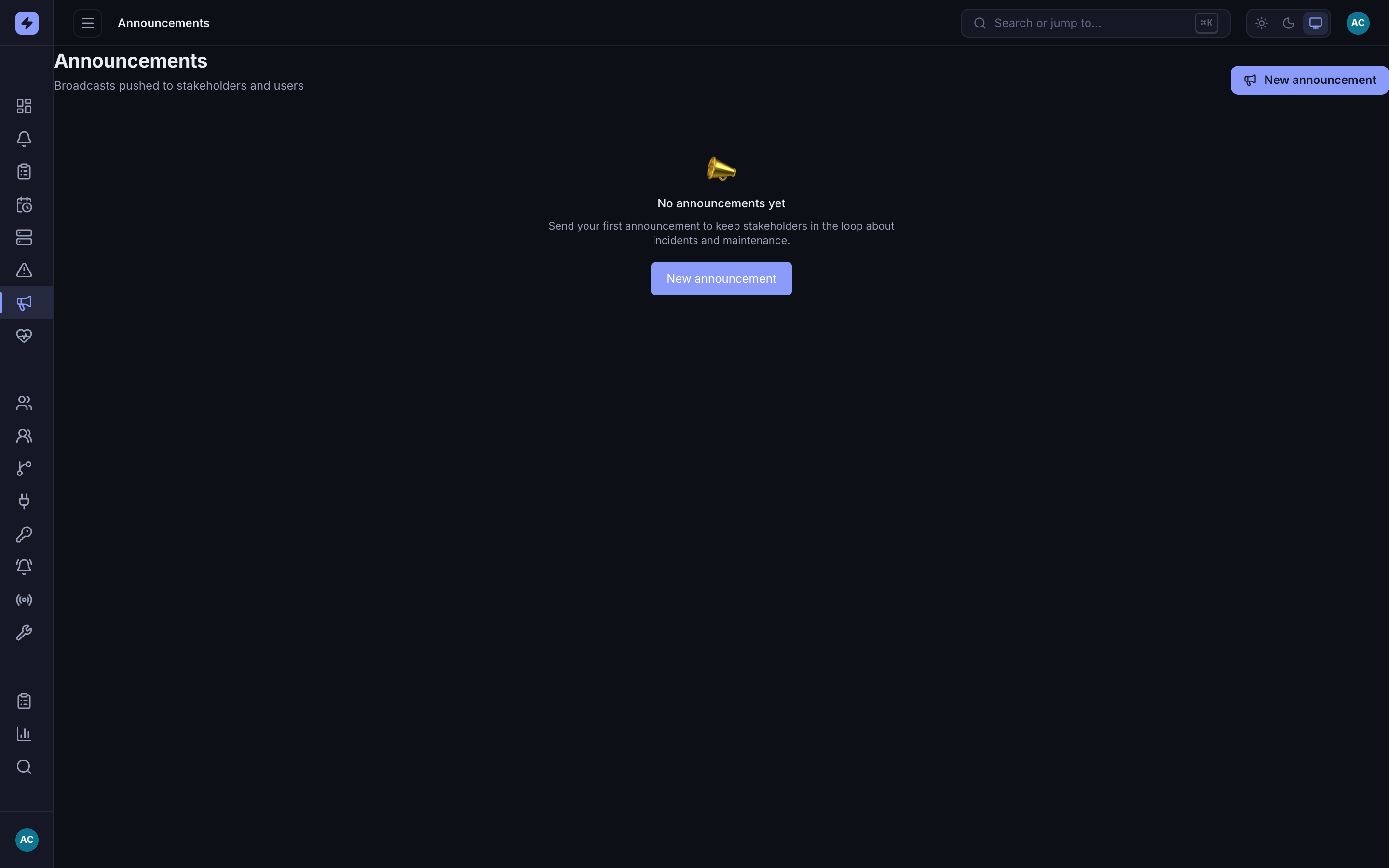
The Announcements page on a fresh workspace. Click New announcement to compose your first broadcast. -
Compose the announcement
Click New announcement and fill in the form:
- Title and Message — what recipients see in the push and the Status tab. Keep the title short; it's the headline.
- Severity — Info, Maintenance, or Incident. This sets the colored pill and how the announcement reads at a glance.
- Affected services (optional) — tag the services involved so stakeholders can connect the broadcast to what they're seeing.
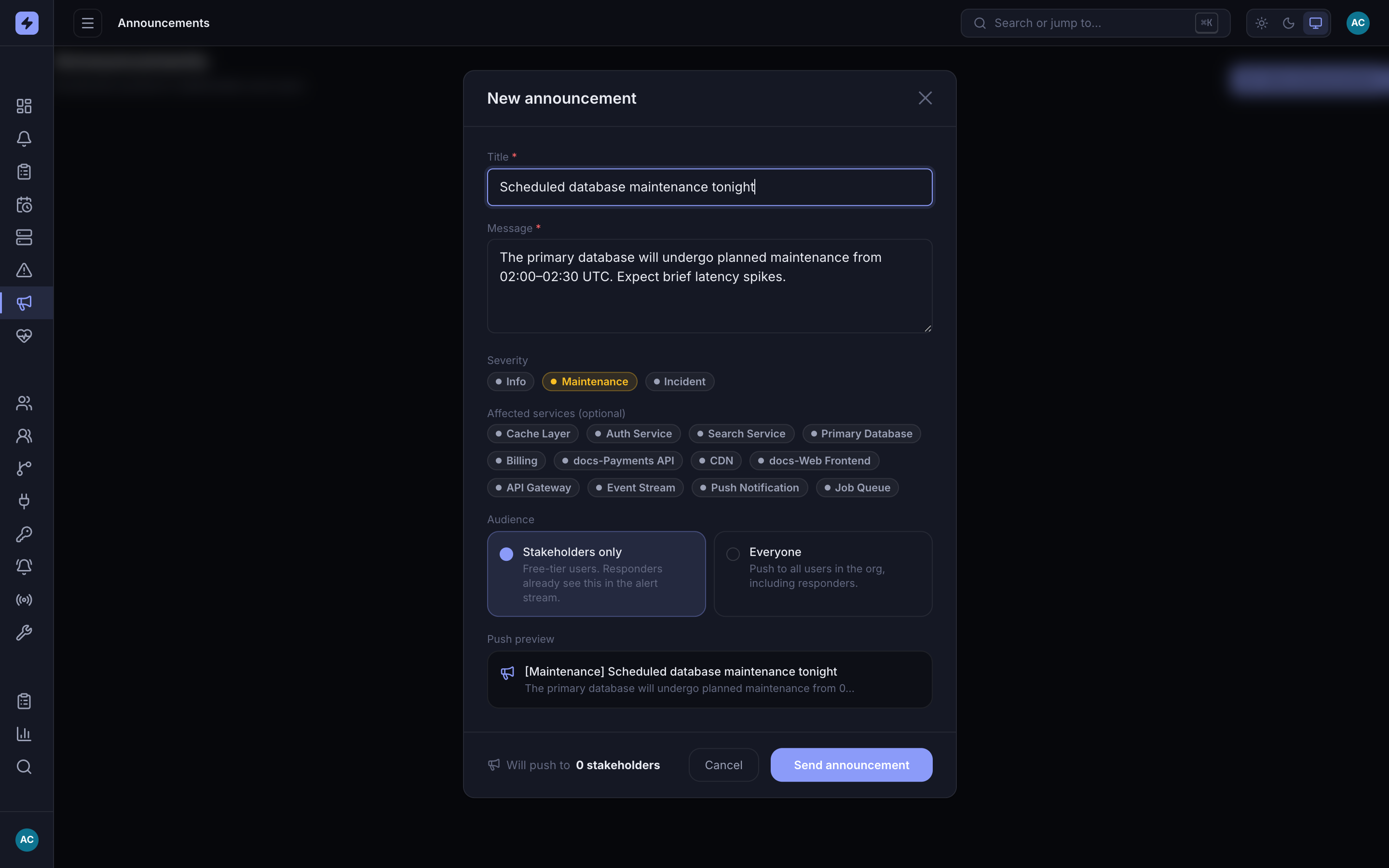
The composer updates a live push preview as you type, so you see exactly what recipients will get. Severity here is set to Maintenance for a planned-downtime notice. TipMatch the severity to the situation: Maintenance for planned work, Incident for an active outage, Info for anything else. The pill color carries through to the mobile Status tab.
-
Choose who receives it
Under Audience, pick where the announcement goes:
- Stakeholders only (default) — free-tier users who aren't on the paging rotation. Responders already see incidents and alerts in their stream, so this is usually the right choice.
- Everyone — every user in the org, responders included. Use this only when responders also need an explicit heads-up beyond their alert stream.
The footer shows a live recipient count —
Will push to N stakeholders— so you know the reach before you send. On a workspace with no stakeholder users it reads0 stakeholders, and the announcement is still created and listed.NoteThe recipient count reflects users with a registered push token for the chosen audience. If it's lower than you expect, recipients may not have opened the mobile app since push was enabled.
-
Send the announcement
When the title and message are filled, Send announcement becomes active. Click it to push the announcement immediately. It appears in the list the moment it's sent, attributed to you with a timestamp.
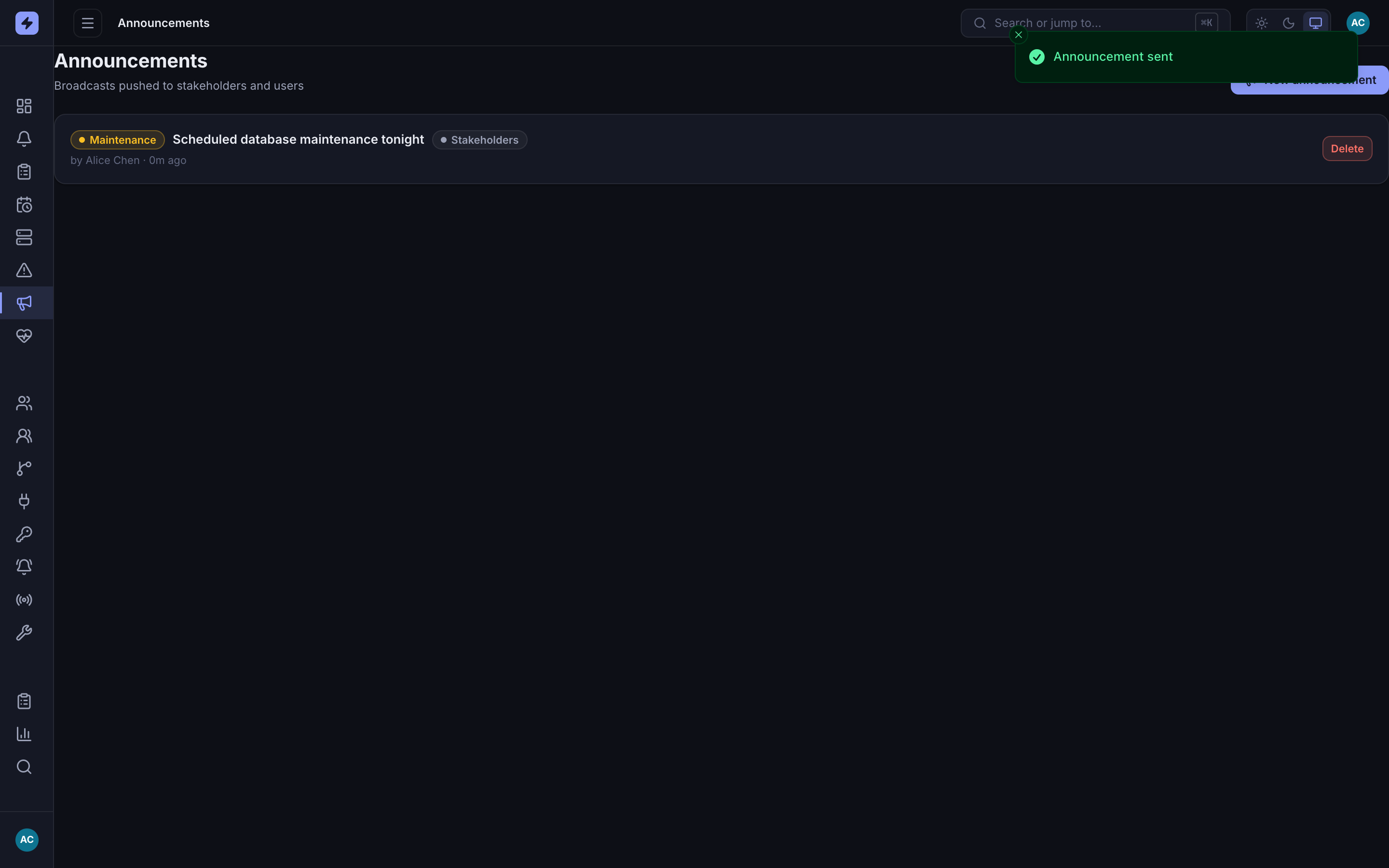
The sent announcement in the list, with its severity pill, audience, author, and timestamp. Stakeholders receive a push and see it at the top of the mobile Status tab. WarningSending is immediate and irreversible — there is no draft or schedule. The push fires the instant you click. Double-check the message, severity, and audience first.
-
Delete an announcement
To remove an announcement, click Delete on its row and confirm in the dialog. It's removed for everyone — the push can't be unsent, but the announcement disappears from the Status tab and list.
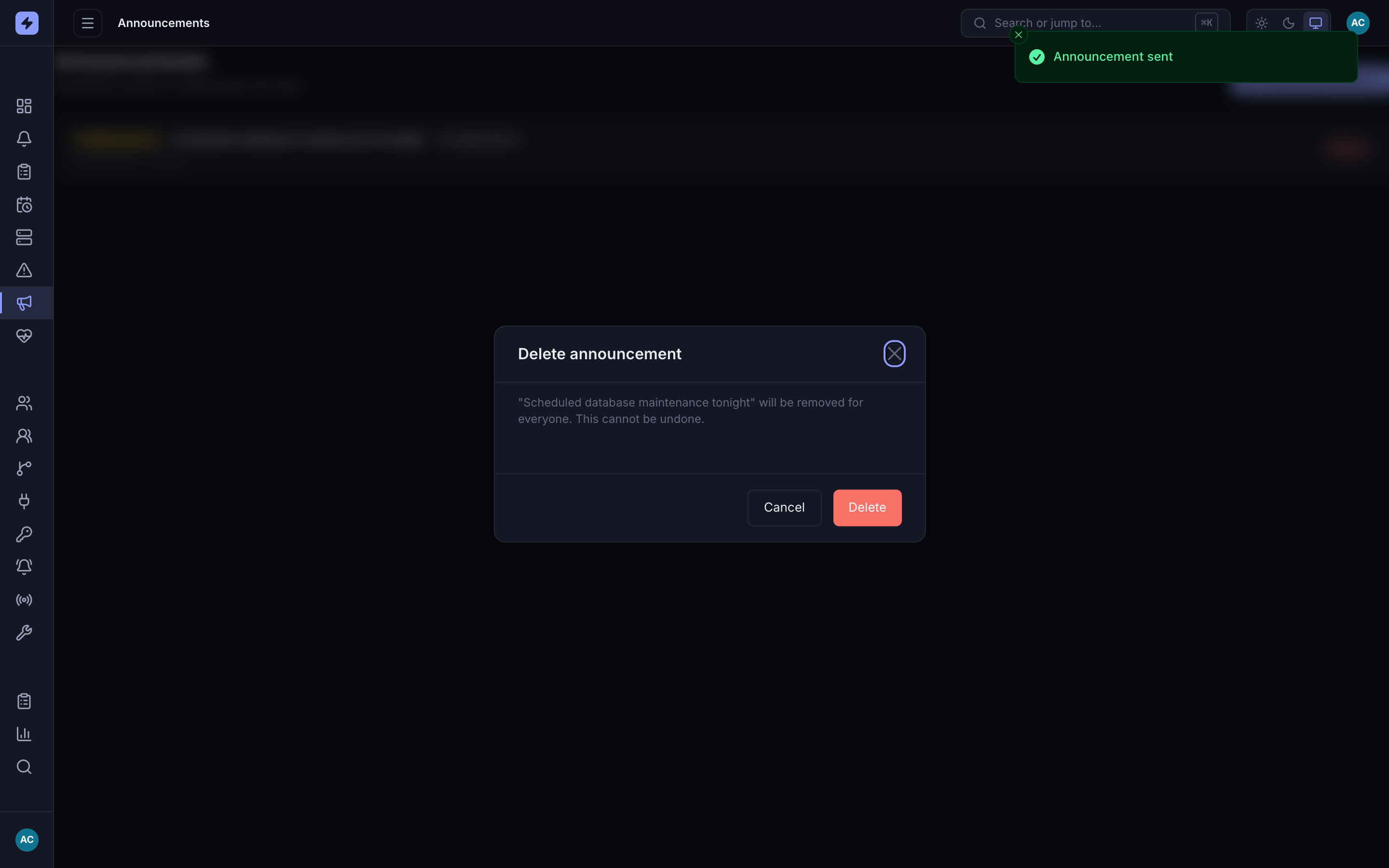
The delete confirmation. Deleting pulls the announcement from everyone's Status tab; the original push notification, once delivered, can't be recalled.
Announcements surface in the mobile app's Status tab — the stakeholder home screen — with a push notification on send. The recipient-side experience is covered in the stakeholder mobile guide.