Keyboard shortcuts
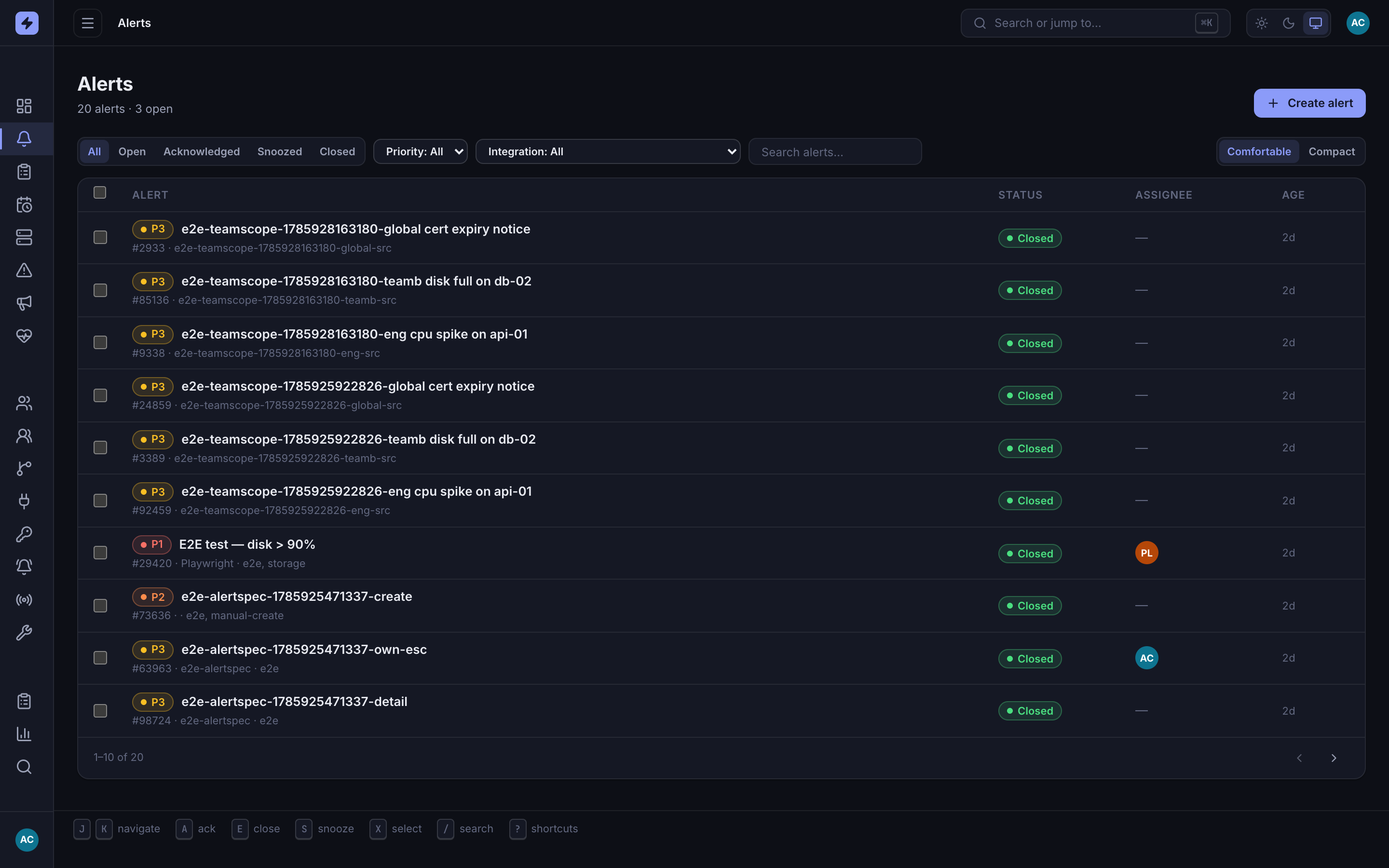
During an incident you don't want to reach for the mouse. The admin console ships a keybar on the alerts pages and a command palette that works anywhere — here's the full set.
Anywhere
| Key | Action |
|---|---|
| ⌘K | Open the command palette — jump to any page, or search alerts and users. Covered in Teams & administration. |
| Esc | Close any open dialog, modal, or the command palette. |
Alert list
| Key | Action |
|---|---|
| J / K | Move focus down / up the alert list. |
| X | Select the focused alert (adds it to the bulk-selection bar for multi-ack/close/snooze). |
| A | Acknowledge the focused (or selected) alert. |
| S | Snooze the focused alert. |
| E | Close the focused (or selected) alert. |
| / | Jump to the search / filter box. |
Alert detail
| Key | Action |
|---|---|
| A | Acknowledge / unacknowledge the alert. |
| S | Snooze the alert. |
| E | Escalate the alert up its policy. |
| N | Focus the note field to add a timeline comment. |
Tip
The keybar is always visible on the alerts pages, so you never have to memorize these — the hint for each action sits right there. Start with J/K to move and A to ack; the rest follows naturally.