Pair your phone
Signing in to the OpsPing mobile app normally means typing your email and password on a phone keyboard. Pairing skips that: generate a one-time QR code in the console, scan it from the app, and you're signed in as yourself — no password typed on the device.
- Signed in to the admin console on a computer (you'll generate the code here and scan it with your phone).
- The OpsPing mobile app installed on your phone, and already pointed at your backend. If it isn't, follow Mobile setup first — pairing signs you in, but the app still needs to know which server to talk to.
Don't confuse the two QR codes. Mobile setup (a static code) tells the app which backend to use. Pairing (this guide) is a one-time code that signs you in. You configure the backend once; you can pair a new device any time.
-
Open the Users page and switch to Pending invites
In the sidebar, go to Users (under Configuration), then click the Pending invites tab. The pairing panel sits below the invite form.
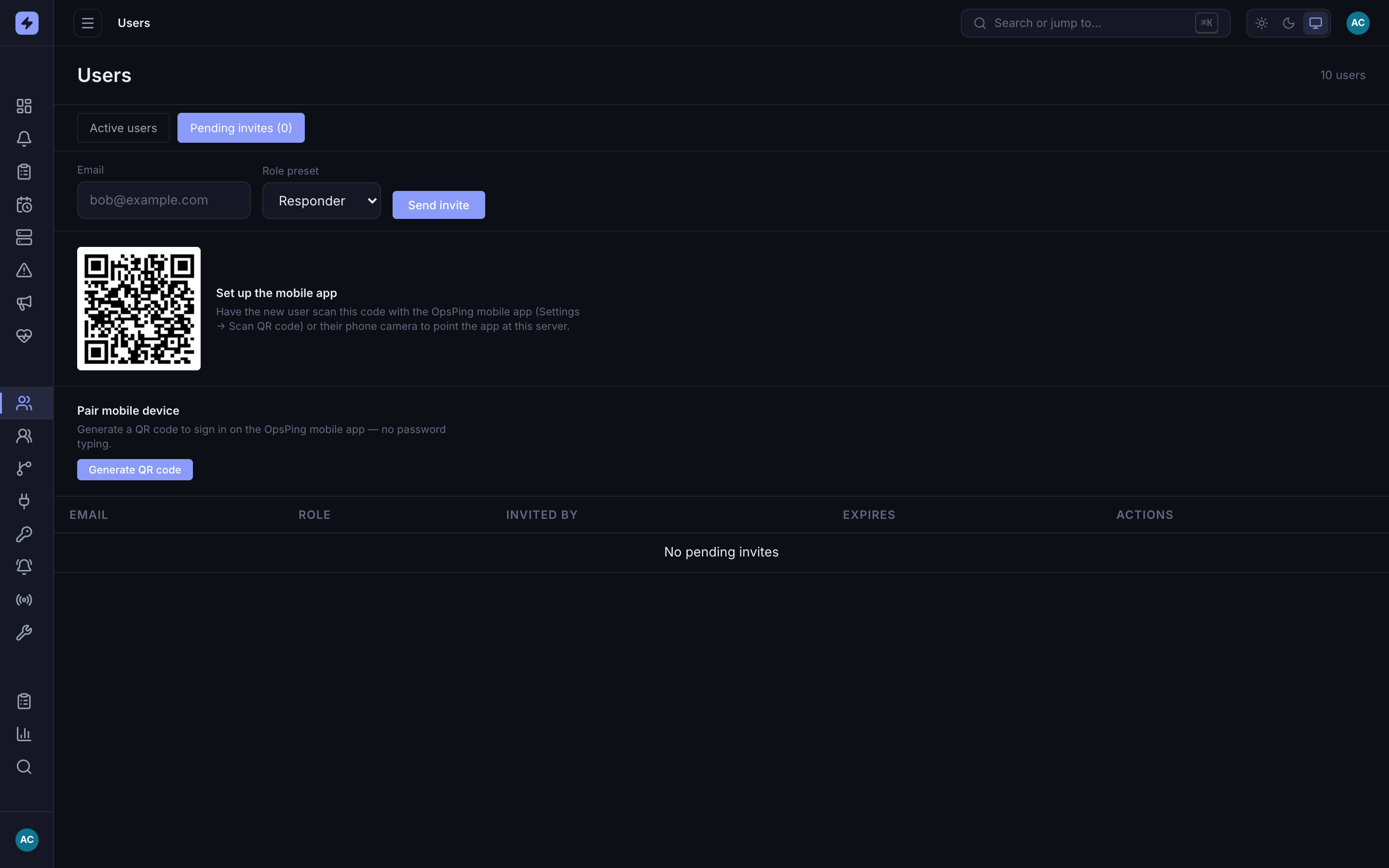
On the Pending invites tab, the Pair mobile device panel with its Generate QR code button. (The code next to it is the static setup QR, covered in Mobile setup.) -
Generate the pairing code
Click Generate QR code. OpsPing mints a single-use code that signs in as you and displays it as a QR with a live countdown — it expires in five minutes.
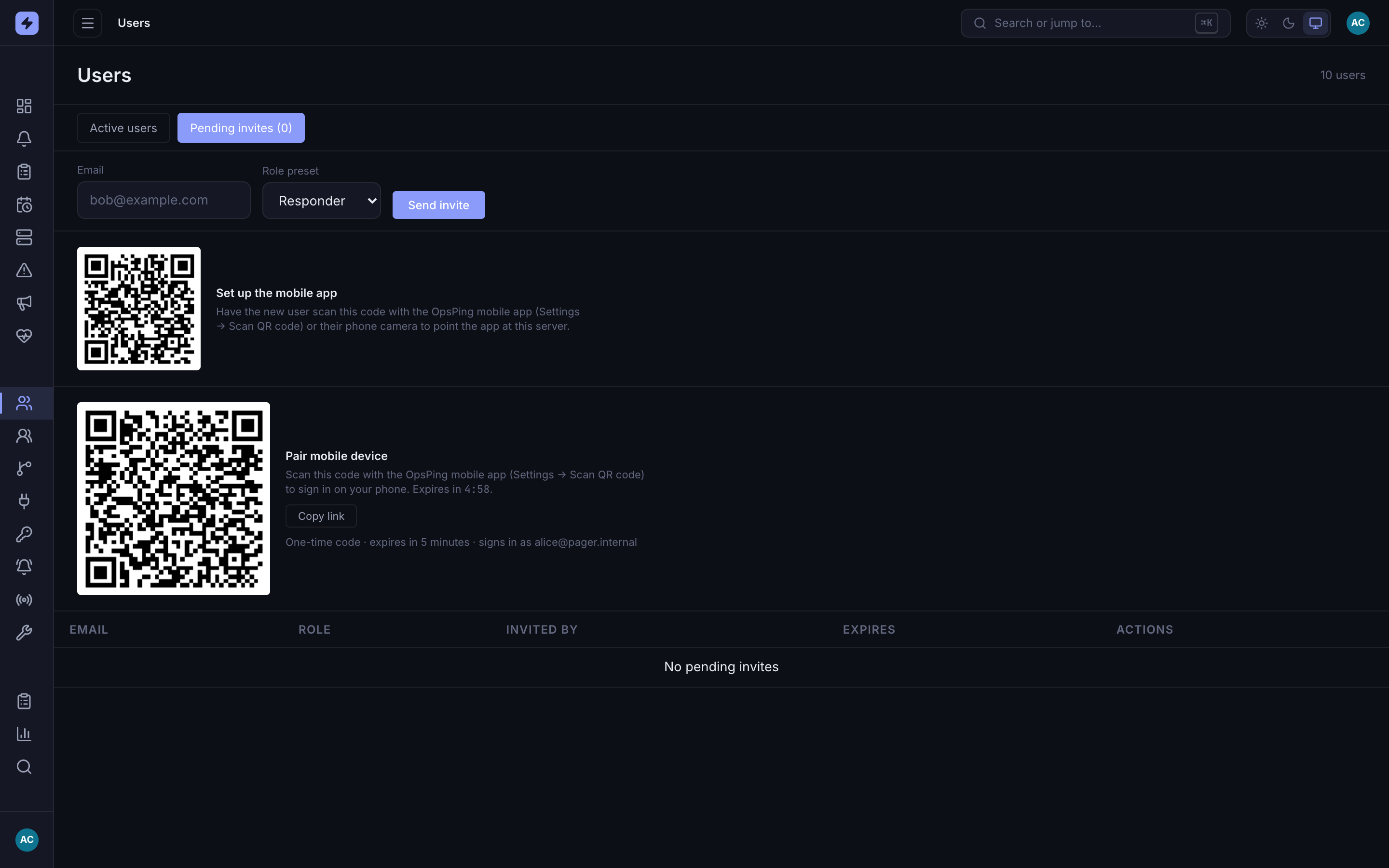
The generated code with its countdown. Copy link gives you the same opsping://pairURL as a link, handy if the camera scan won't take.WarningWhoever scans the code is signed in as you, with your full access. Only generate it on a screen you control, and let it expire unused if you don't end up scanning it — codes are single-use and self-destruct after five minutes regardless.
-
Scan it from the mobile app
On your phone, open the OpsPing app and go to Settings → Scan QR code. Point the camera at the code on your screen. The app exchanges the pairing token for a normal session and drops you onto the Alerts tab — signed in as yourself, no password typed.
TipIf the scan keeps failing, click Copy link in the console and open the
opsping://pairURL on your phone instead (for example, email it to yourself and tap it there). It does the same thing as the scan.